In Module 4 we learned to find and incorporate historic data into maps. First part of the assignment was to find the historic data. While the historic map of Boston was provided by UWF, we used Ancestry.com to get census information about Paul Revere.
Second part of the exercise focused on incorporating data into a map. This included creating internal and external links. External links hyperlink to Google Maps, the location in Boston with Paul Revere's house in. Internal links includes an image of a page from 1790 census, including entry for Paul Revere.
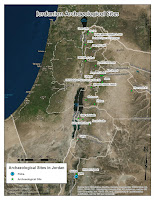 In module 3 we covered the importance of ethics in archaeology. The reading points out that the need for codified ethics rules rose up from the wide spread of commercial archaeology. While I believe that is certainly not wrong, one cannot forget that until recently academia led archaeology was nothing more than glorified looting, to be shown off in the looter's national museums as a trophy. Any talk about ethics in archaeology cannot be focused on one aspect, such as CRM, but on all aspects. Academia is certainly not immune from people trying to profit from archaeological findings.
The lab for module 3 focused on creating shapefiles. This was done by either manually creating a point, and creating a shapefile out of it, or by importing a data table into ArcMap. The data table contained fields with site name, site description, and Lat and Long of the site. Once imported and converted into a shapefile, it displayed all the site in the database. When looking at the attached map, Petra site (in blue) is the manually created shapefile. All other sites come from a database that was converted into a shapefile.
In Module 02 we learned to perform SQL queries and to use the Clip tool of ArcMap. In this module we used these techniques to compare the areas and landmarks of Chicago before, and 20 years after the Great Chicago Fire.
The SQL query is a very useful tool for selecting a range of data from a larger database. The query is done by inserting an equation referencing file's attribute table into the tool. Once the query is run, the newly selected data can be exported into a separate shapefile. This provides a quick and relatively easy way to separate a large shapefile into a number of smaller ones that may offer more specific information. In the case of the Chicago Fire map, I have taken a shapefile with landmarks in Chicago, and created two separate file, one with all the landmarks build before the fire, and one with landmarks build between 1871 and 1890.
The Clip tool simply takes a shapefile, and removes all data from it that falls outside of another, related shapefile. In the case of the Chicago Fire map, once I had the pre 1871 landmark file, and 1871-1890 landmark file, I clipped to their respective city shapefiles. The pre 1871 landmarks file was clipped to the Chicago 1869 map, thus removing all landmarks outside the city limits. The 1871-1890 landmark file was clipped to the Chicago 1890 map, again removing all landmarks that fell outside the city limits at the time.
 For my final project I compared images of the Lake Tahoe region from 1999 and 2010, and compared the land use/cover over those time periods. I used data provided for the final, which included images of the region in those two time periods.
First I used Stack tool in ERDAS to combine multiple band files of the 2010 image. Then I used Subset and Chip tool to reduce the size of the of the 2010 image to be the same as the 1999 image. This was done using the Inquire box, and I repeated the process for the 1999 image, just to be sure that both images cover the same area.
Then I performed an Unsupervised Classification on each image. Once completed, I reclassified the data into eight groups, and calculated area in acres for each group. Then I could manually calculate the percentage of land cover of each of the eight groups.
In Module 10 we learned to create a supervised classification of data. This process begins with manually creating signature points. These points train the software to look for similar pixels and assign them to an appropriate category. Once all categories are created, and each category may have multiple signature points, it is wise to look for Spectral Confusion.
By looking at Histogram Plots and Mean Plots we can see which categories may be overlapping, thus assigning pixels to the incorrect classification. Creating Distance image helps to identify areas that are likely to be mislabeled. After using above tools to determine which spectral bands are closest together, we can change the spectral bands of the image to minimize Spectral Confusion. Once all that is done we can combine like categories into a single category, such as Agricultural 1 and Agricultural 2 into Agricultural.
Once above steps are done we move from ERDAS Imagine to ArcMap to complete the map.
The map on the left shows unsupervised classification of an area.Unsupervised classification relies on the software to classify the pixels. Once classified I manually assigned each type of pixel into one of five categories, and gave each category a unique and distinctive color.
Most of the process was done in ERDAS Imagine. First, to classify the image into 50 distinct pixel categories. Then, to manually assign each pixel to a new category. Lastly, ArcMap was used to create the final map.
 This map shows the shallow waters along the coast to the West of the gap, located at x: 470000 and y: 3355000. The water West of the gap is much warmer, as shown by the yellowish striations. The water on the East side of the gap is much deeper, as shown by the blue color, lacking the warmth represented by yellow. The actual striation in the warm, shallow water are caused by waves and tidal action that is more pronounced in the shallow waters.
I found this feature as I was looking along the coast and I noticed that the seas side of the coastline showed a lot of temperature variation between the coastal water on the east and west side of the gap. After examining aerial photos, there did not seem to be any correlation between water temperature and urban development along the coast.
Using the band combination of Red 2, Green 1 and Blue 6, the warm, shallow water displayed in yellow. In contrast vegetation and most of urban areas display in blue, and cool , deep water pourple-blue.


